
#Tips : Recording Mobile Screens in Mac
Both Android and iPhone
#Tips : Recording Mobile Screens in Mac
Both Android and iPhone
As designers, we often would like to record a mobile screen for capturing a flow, bug or even showing a quick tour. If your using Mac there are easy ways to record your screens both on Android phones and iPhone.
Recording Android Screen:
Step 1: Install Android Tools
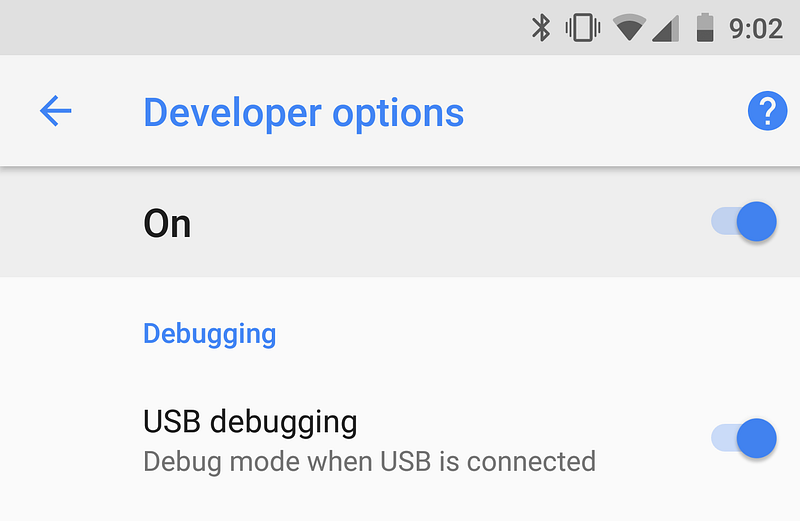
Step 2: Enable Developer options, then enable USB debugging on your Android phone.
- Settings > System > About phone > Tap Build number 7 times.
- Settings > System >Developer options > Enable USB debugging
Step 4: Launch Android Tools
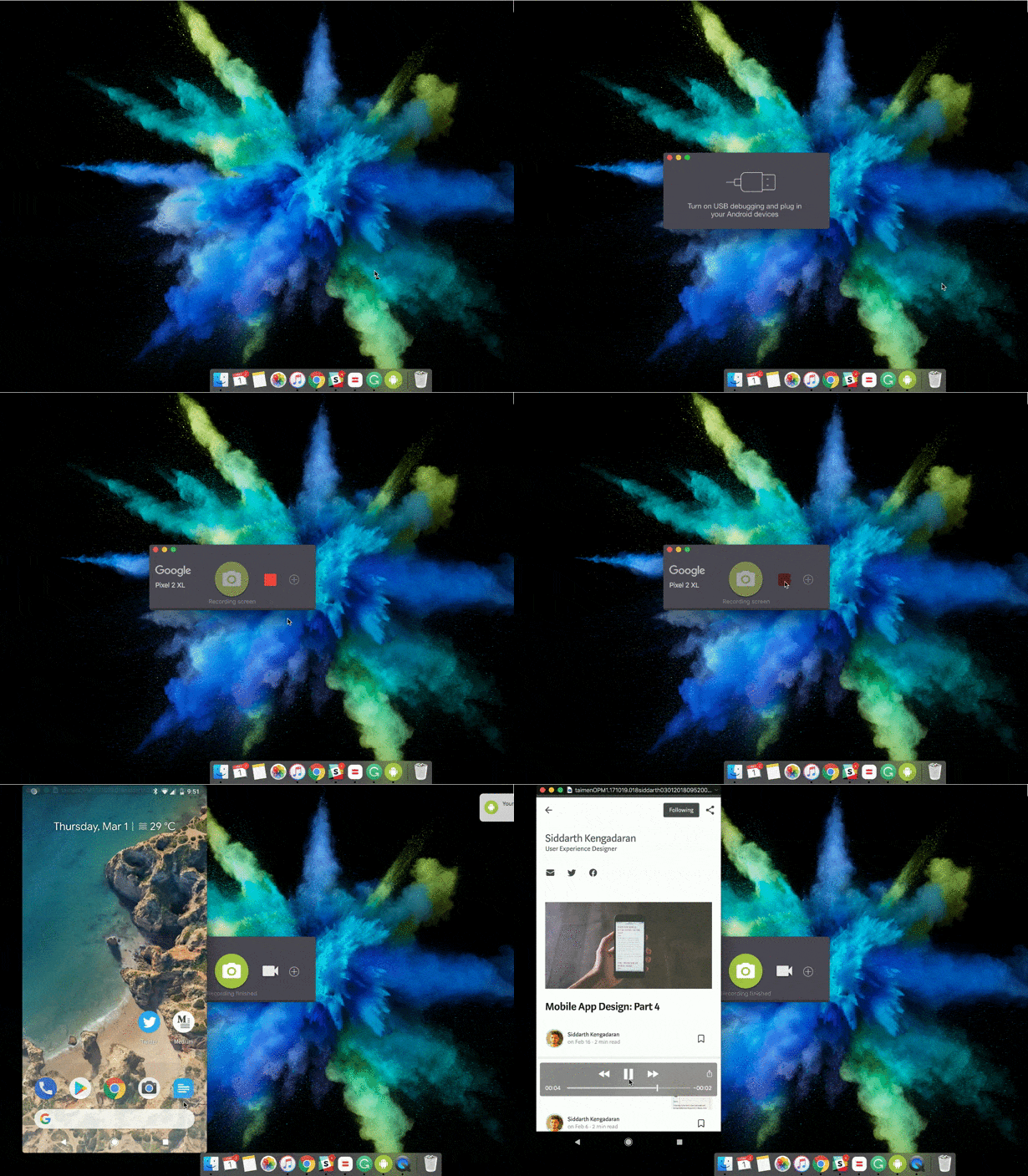
Step 6: Connect your android device.
Step 5: Hit the camera icon to take a screenshot or click the camcorder for a screen recording.
Your video will be stored in Desktop > Android Tools folder.
Recording iOS Screen:
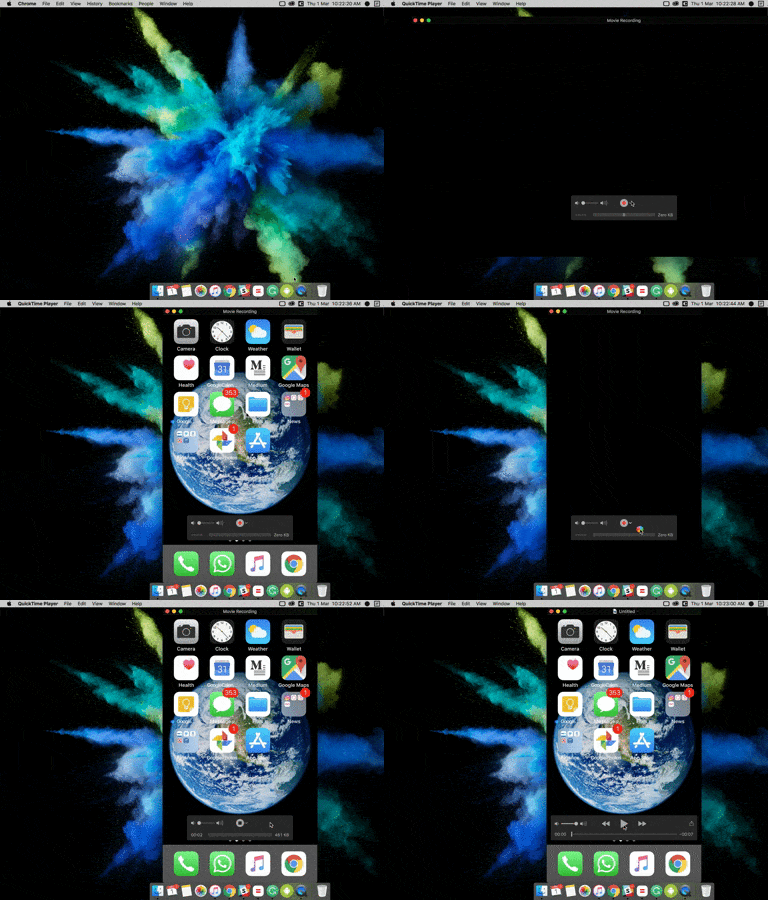
Unlike Android, We don’t need any third party tools. We can achieve this using the Quicktime player in the mac.
Step 1: Connect your iPhone to Mac.
Step 2: Launch QuickTime Player
Step 3: Click New Movie Recording
File > New Movie Recording
Step 4: Select iPhone as your camera. (Audio: Optional)
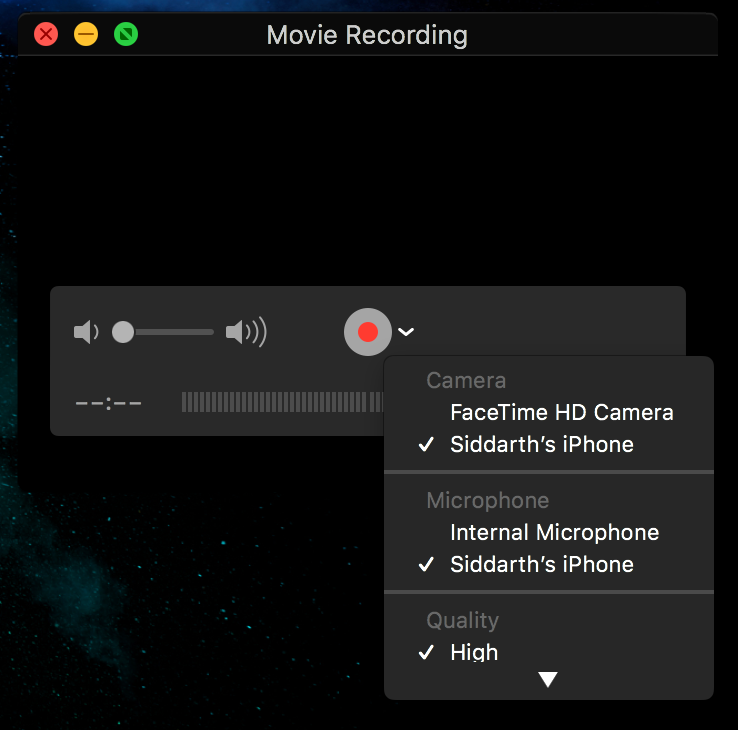
Step 5: Click Record.
Hope it’s useful.
You can follow my other series: