
Understanding visionOS — Part 1
Windows, Volumes, Spaces ,and UI Components
Understanding visionOS — Part 1
Windows, Volumes, Spaces ,and UI Components
visionOS is the operating system that powers the Apple Vision Pro, Apple’s upcoming augmented reality (AR) and virtual reality (VR) headset. Unlike anything we've seen before, it is a new operating system built from the ground up for spatial computing.
visionOS is designed to allow users to interact with digital content in a natural and immersive way. It uses various sensors, including cameras, depth, and motion sensors, to track the user’s head, eyes, and hands. This allows users to interact with apps and games using natural gestures like pointing, tapping, and grabbing.
Building blocks of visionOS
Windows
A window in visionOS is a rectangular area on the screen that displays content from an app. It is similar to a macOS or iOS window but can display 3D content. Windows in visionOS contains traditional views and controls. You can add depth to your experience by adding 3D content.
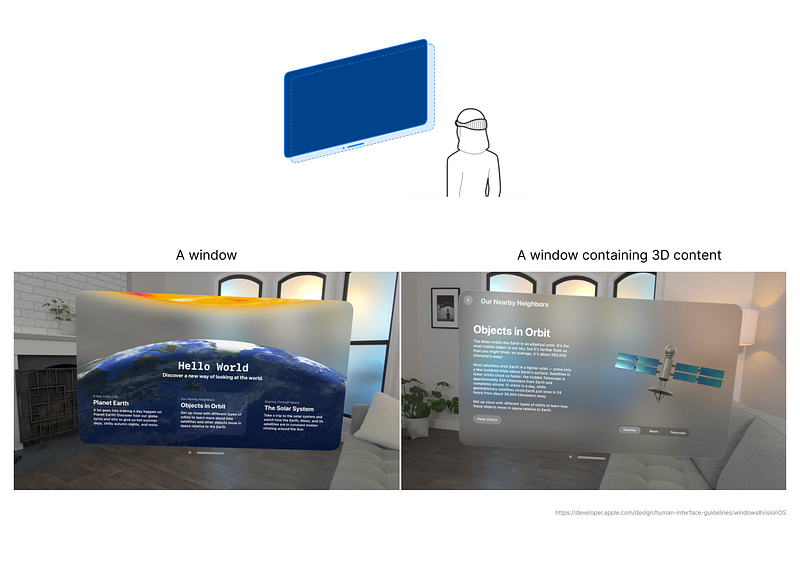
You can create one or more windows in your visionOS app. The system places new windows directly in front of people, where they happen to be gazing at the moment the window opens. This helps to ensure that people become aware of newly opened windows. A user can reposition and resize windows. Windows are designed to fit comfortably within people’s view but they are super flexible, stretching to fit any size and shape.
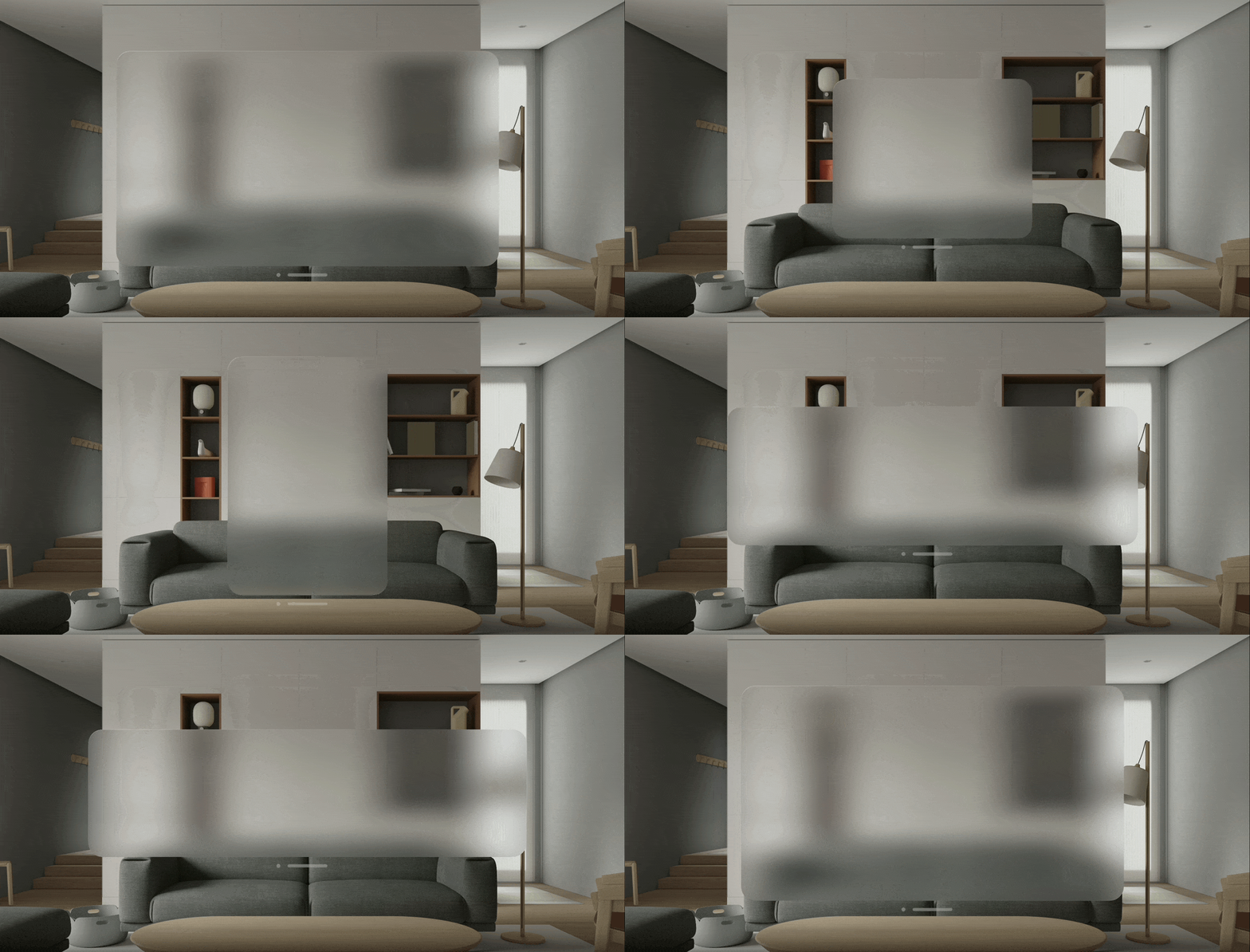
For example, a web browser is tall so people can see more of the web page, and a presentation app is wide to fit full-size presentations. When the sidebar is opened, a window grows, showing more controls without covering the existing content.
Windows aren’t bound by a screen, so they should remain smaller when possible to avoid blocking too much of people’s view, changing its shape and size based on the context.
Volumes
A volume in visionOS is a 3D space that can display 3D content. It is similar to a window in visionOS but not limited to a rectangular shape.
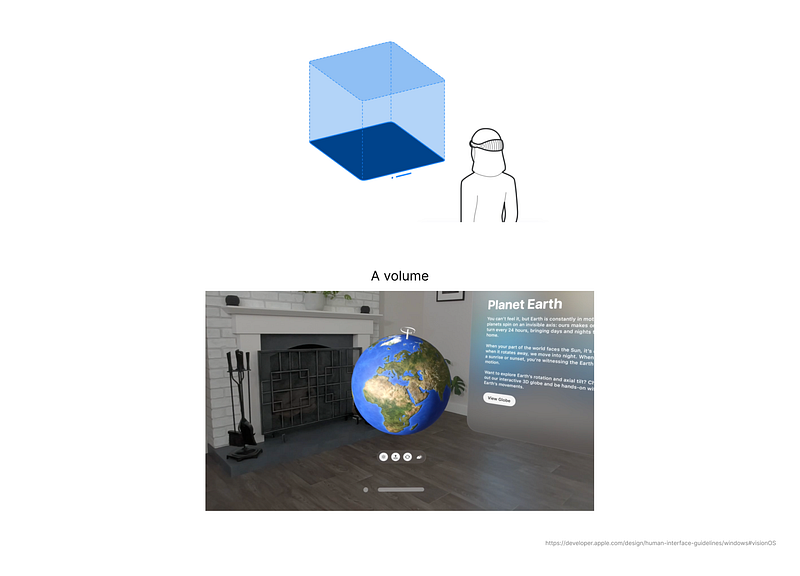
Volumes in visionOS can be used to showcase 3D content. This creates viewable experiences in the Shared Space or an app’s Full Space.
Spaces
A space in visionOS is a 3D environment that can be used to host apps and content. It is similar to a desktop or a virtual room but designed to be more immersive and interactive.
Spaces in visionOS can be either Shared Spaces or Full Spaces. Shared Spaces are the default, allowing multiple apps to exist side by side, much like various apps on a Mac desktop. Apps can use windows and volumes to show content in a Shared Space, and users can reposition these elements wherever they like.

Windows in Shared Space
Full Spaces are a more immersive experience, allowing only one app to be active at a time. Inside a Full Space, an app can use windows and volumes, create unbounded 3D content, open a portal to a different world, or fully immerse people in an environment.
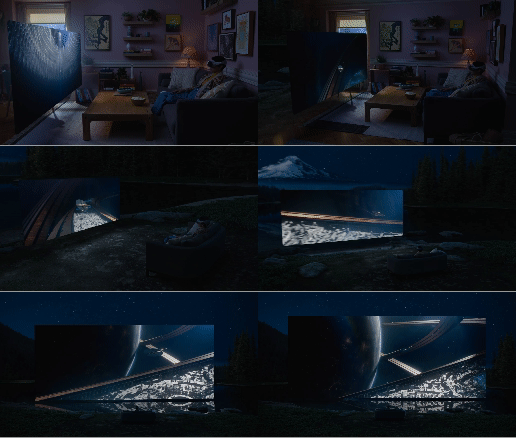
An App in a Full Space
Components in visionOS
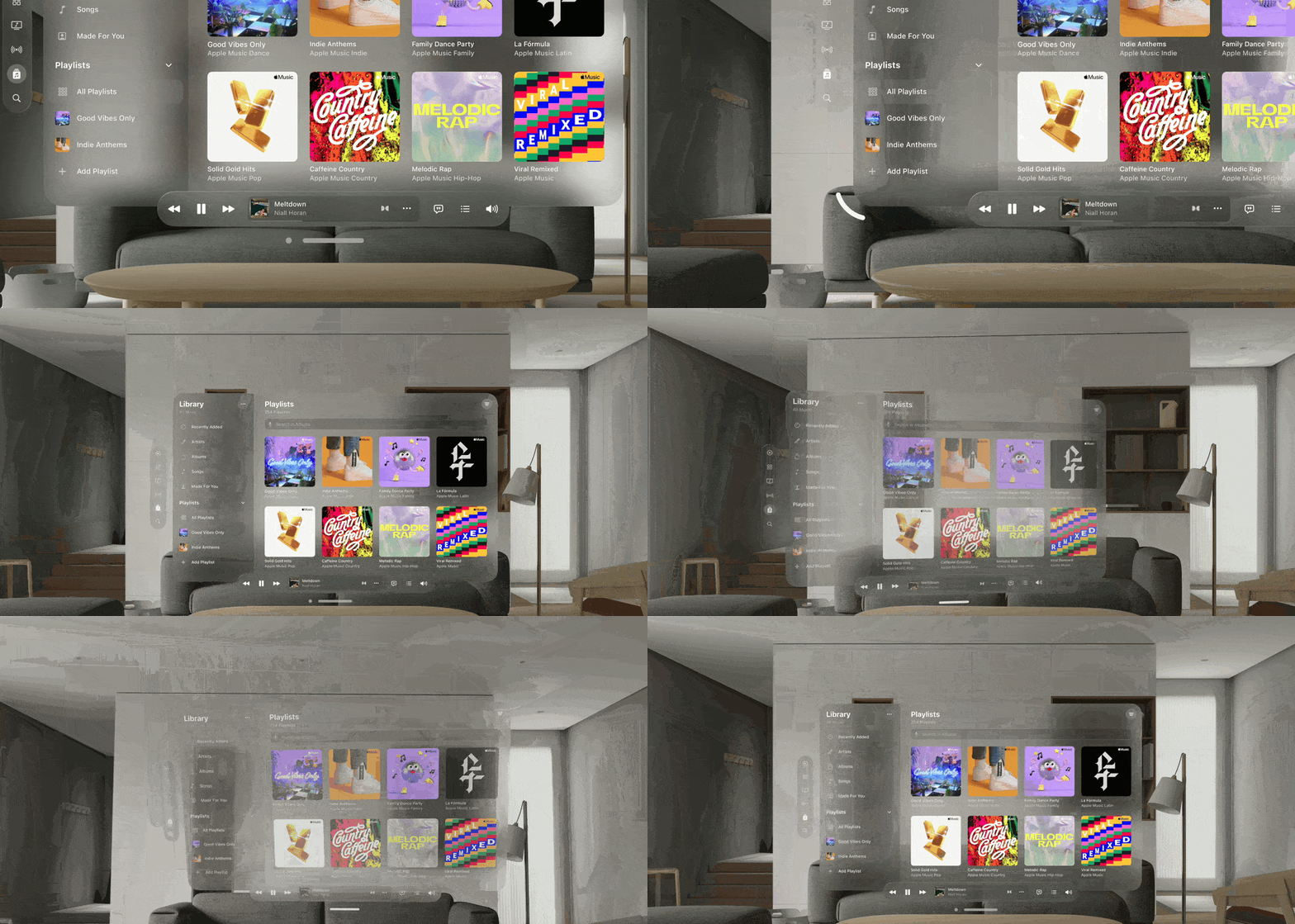
Window bar
The window bar in visionOS is located below the app’s content. You can use the window bar to:
Reposition the window by tapping and dragging the window bar.
Reveal the window’s close button by moving the pointer over the circle next to the window bar.
Turn the window bar into a resizing control by moving the cursor to one of the window’s corners.
Tab Bar
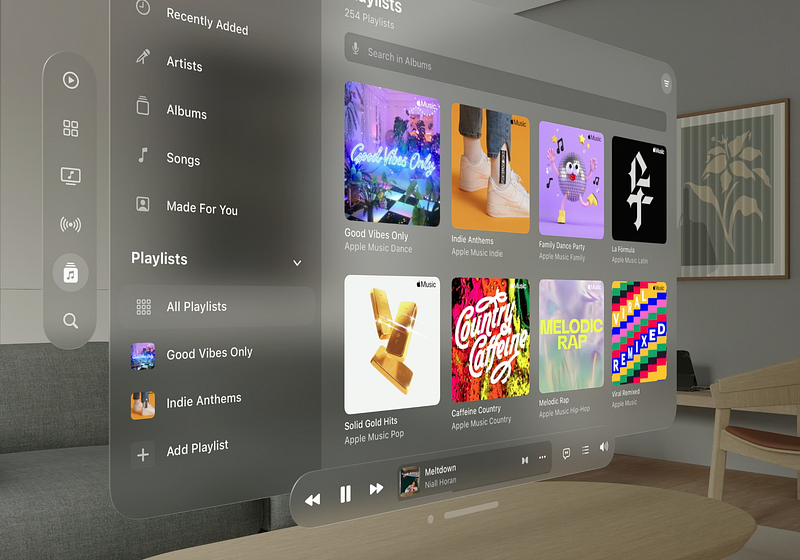
A tab bar in visionOS is a vertical bar that displays a row of tabs. When a tab is selected, its corresponding content is displayed. Tab bars are a common way to organize and navigate between different sections of an app.

In visionOS, tab bars are always positioned on the left side of the window, and they float in front of the window’s content. When you look at a tab bar, it automatically expands. To open a specific tab, you focus the tab and tap. While a tab bar is expanded, it can temporarily obscure the content behind it.
Tool Bar
In visionOS toolbars appear along the bottom edge of a window, above the window bar, and in a parallel plane that’s slightly in front of the window along the z-axis.
Navigation Bar
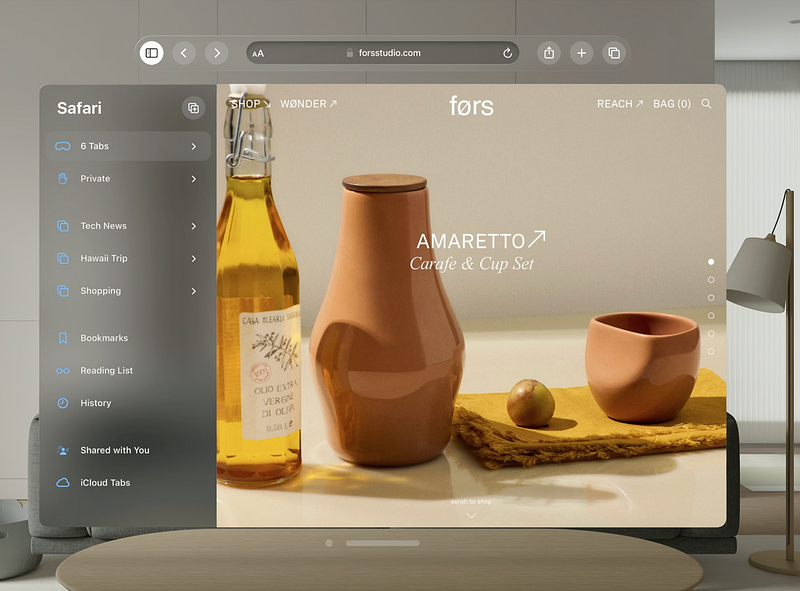
A navigation bar appears at the top of a window, helping people navigate through a hierarchy of content.
Side Bar
Modal

Part 2 — Interactions.