
Using InVision for AR prototyping
Prototyping tools for Augmented Reality are still in their early phases when compared to other mediums like web or mobile. To help…
Using InVision for AR prototyping

Prototyping tools for Augmented Reality are still in their early phases when compared to other mediums like web or mobile. To help beginners to prototype quickly to test their user flow or to demonstrate a concept. Here is a hack to use the existing tools which designers are familiar with to prototype for the new medium.
Before getting into prototyping for AR, we should know how colors behave in the new medium. Traditional UIs have a vibrant color palette, ranging from black to white and the millions of color in between. In optical see-through displays, there is a relative disadvantage most illuminated pixel rendered to have a certain level of transparency. This property makes the AR applications appealing in many contexts. The color black is rendered transparent on AR displays. Using this property, we can prototype AR applications on devices with the help of InVision, as InVision lets you set the background color.
Step 1: Open your goto design tool. I used Sketch for this experiment and set the artboard size based on the target device. In this case, I set it to 1280 x 960 px.

Step 2: Design the user flow which needs to be tested or demonstrated. Create different states of buttons or target screens.

Note: Using InVision, we can mock hover and click actions, plan your flow, respectively.
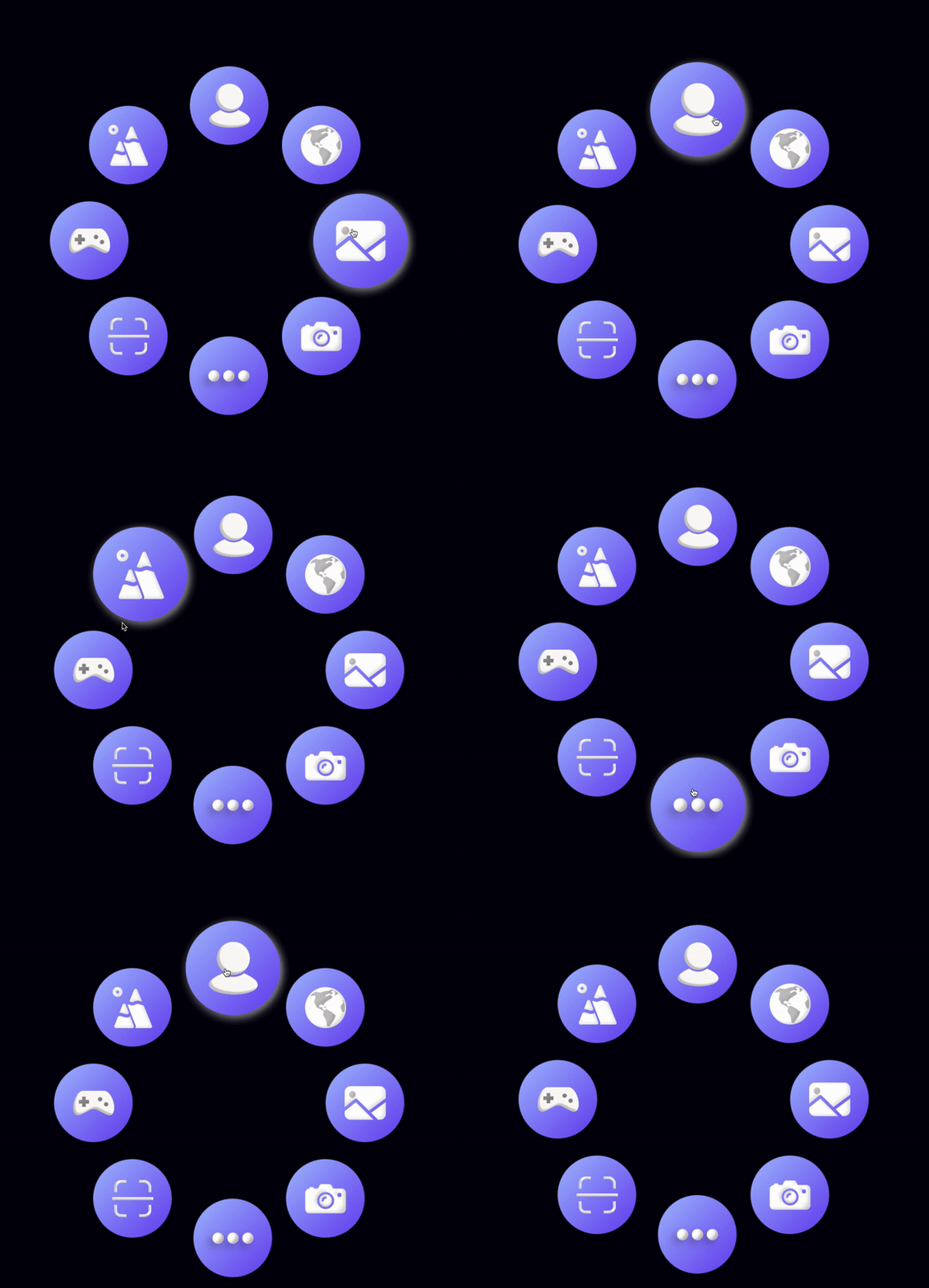
For this demo, I have designed a launcher screen where the icons scale on hover, and you can click on them to trigger the respective app.
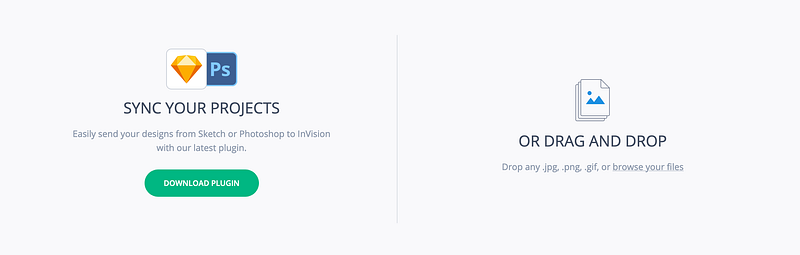
Step 3: Create a new project in InVision and set the desktop as a target platform. Import the screens from your design tool.
https://projects.invisionapp.com
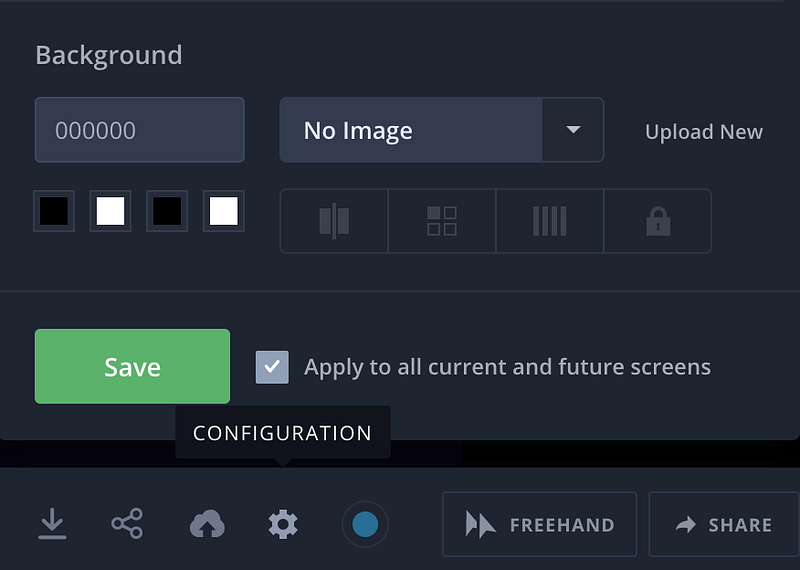
Choose the configuration from the bottom bar and set the background to #000000.
https://projects.invisionapp.com
Step 4: Go to build mode and prototype based on your requirements.

https://projects.invisionapp.com
https://projects.invisionapp.com
Step 5: Tada, your prototype is ready, and now its time to see it in action. Open a browser in your AR headset that does not have a predefined background in it. In my case on I used the Helio browser on Magic Leap. Login to InVision and run your prototype or type the public share link of the prototype to run it.
Your prototype is all set to for testing.
Helio Browser on Magic Leap
I am looking to make this process more seamless, will keep this post updated, and If you have any ideas or suggestions, please fo reach out to me @s1dd4rth on twitter.